
When an online game registers your command too late, your voice reaches the other person with a delay on a video call, or the screen freezes while you upload a file, a slow internet package isn't always to blame. What these problems usually have in common is latency. Methods for reducing internet latency help your connection respond faster and let you get more out of your current internet experience.
Latency is the time it takes for data to travel from your device to its destination on the internet and for the response to come back. It is measured in milliseconds (ms). Especially for gaming, live streaming, remote work, IP telephony and video meetings, low latency can matter more than high download speed alone.
Why do methods for reducing internet latency work?
Your internet speed refers to how much data you can download or upload at a time. Latency, on the other hand, shows how quickly your connection responds. For example, a large file may download quickly on a high-speed connection, but if your Wi-Fi signal is weak or the network is heavily used, your ping in games can still be high.
The main factors affecting latency are wireless network conditions in your home or office, modem performance, the number of connected devices, the location of the server you're using and the internet infrastructure. That's why you shouldn't expect a single setting to give the same result in every scenario. First, you need to understand where along the connection the problem occurs.
First, identify the source of the latency
Before changing any settings, do a quick check. If the problem occurs on only one device, focus on that device; if it appears on all devices, focus on the modem or the connection. Latency that increases especially in the evenings may be related to network congestion or heavy data usage at the same time.
Making the following distinctions during your check will make things easier:
- Try the same application separately over Wi-Fi and with an Ethernet cable.
- Check whether other devices at home or in the office are downloading, backing up or streaming.
- Test the connection at locations both near and far from the modem.
- Observe whether the problem occurs in every application or only in a specific game or meeting platform.
If the problem disappears on Ethernet but persists on Wi-Fi, your priority should be your wireless network setup. If both connection types show similar latency, possibilities such as the modem, the infrastructure or the distance to the target server come to the fore.
Steps you can take to lower latency
1. Use an Ethernet cable whenever possible
For a desktop computer, game console, smart TV or stationary work computer, an Ethernet connection is one of the most direct solutions. A wired connection is less affected by walls, neighboring networks and wireless signal fluctuations. This can provide a more stable ping, especially for competitive games and video meetings.
Connecting every device by cable may not be practical. But even wiring the device where latency is critical makes a difference. Since an old, crushed or overly long cable can also affect performance, choose a high-quality, sturdy network cable.
2. Place the modem in an open, central location
The modem's location directly affects Wi-Fi performance. Putting the modem inside a closed cabinet, leaving it near the floor or placing it behind thick concrete walls can weaken the signal. A central, elevated and as open as possible location offers more balanced coverage.
Microwave ovens, cordless phones, areas with heavy Bluetooth use and some smart home devices can also affect the wireless signal. Moving the modem away from these devices may seem minor, but it can be an effective improvement.
3. Choose the 5 GHz network on the right devices
Dual-band modems offer two different wireless network options: 2.4 GHz and 5 GHz. 2.4 GHz can reach a wider area but may be more affected by surrounding networks. 5 GHz usually offers higher speeds and lower latency for devices close to or at a moderate distance from the modem.
If your gaming computer, newer phone or the laptop you use for video calls is close to the modem, the 5 GHz network is a good choice. If the device is in a distant room or there are many walls in between, 2.4 GHz may give more stable results. The best choice depends on the physical layout of your home.
4. Limit heavy background usage
One of the most common causes of latency is the connection carrying too much load at once. When one device is running a cloud backup while another streams high-resolution video or downloads a game update, your ping goes up. Especially when upload traffic is saturated, audio dropouts can occur in video calls.
Stop unnecessary downloads before a meeting, live stream or gaming session. Scheduling automatic updates and cloud sync for more convenient times can deliver a smoother experience even without upgrading your connection.
5. Restart your modem regularly
When modems stay on for long periods, temporary software or connection issues can arise. Turning the modem off, waiting about 30 seconds and turning it back on can help resolve temporary network problems. This isn't something you need to do constantly; think of it as one of the first checks when latency suddenly increases.
Also check the modem interface for firmware updates. Up-to-date firmware may include fixes for Wi-Fi stability in addition to security improvements. Don't cut power to the modem during an update.
6. Reduce Wi-Fi channel congestion
In apartment buildings and business centers, many wireless networks may be using the same channel. This can cause interference and latency fluctuations, particularly on the 2.4 GHz band. Leaving the channel setting on automatic in the modem interface is sufficient for most users, but trying a different channel in crowded areas can help.
Rather than making random, repeated changes to this setting, test your connection at different times after each change. A stable ping is just as important as the lowest ping.
7. Evaluate older modems and network equipment
Even if your internet package is fast, an old modem can become the bottleneck for wireless performance. In homes and small offices with many connected devices, equipment that supports current Wi-Fi standards can offer better capacity. Especially with modems bought years ago, processing power, port speed and wireless coverage may fall short of today's usage needs.
In large spaces, a single modem cannot deliver an equal signal to every spot. In that case, an access point, a mesh system or properly positioned additional network equipment may be worth considering. However, placing the extra device in the wrong spot can create a new wireless bottleneck instead of solving the problem.
8. Take application and server distance into account
Sometimes latency can be high in a specific game or application even though your home network is working fine. This happens because the server you're connecting to is in a different city or country. Since the data physically travels a longer route, it's impossible to bring ping down to zero.
In games, it helps to choose servers that serve Turkey or nearby regions and, if possible, to set the server region manually. In business applications, using a VPN can also increase latency. If there's no security requirement or your company policy allows it, you can run a comparison test against a connection without a VPN.
When should you reconsider your internet package or infrastructure?
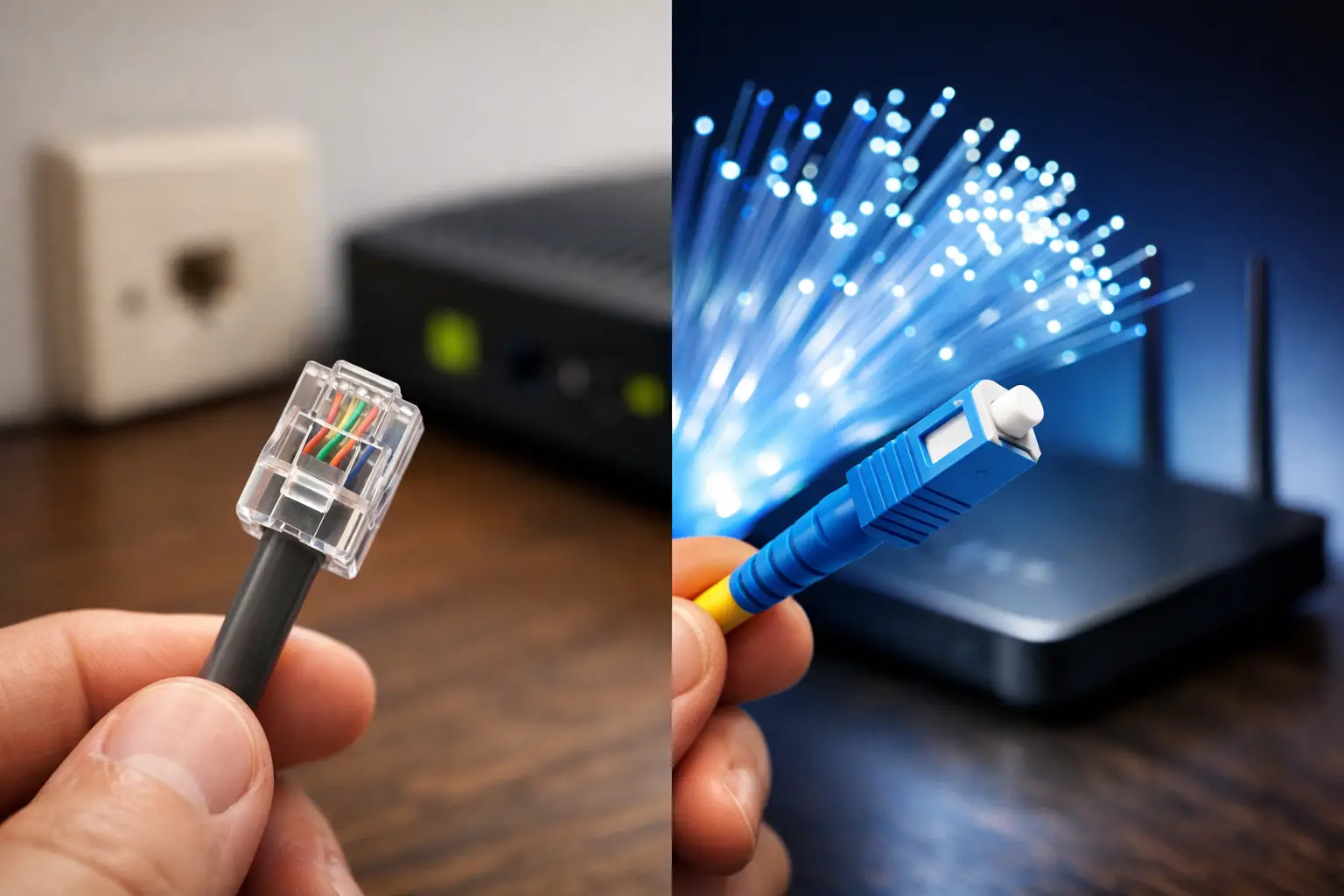
If latency persists on all devices even after you've made these in-home adjustments, it's time to review your connection type and usage needs. Connection capacity becomes critical especially in households with many devices, remote teams and businesses using cloud-based applications. Fiber infrastructure can offer lower latency and more consistent performance in areas where it's available, while with VDSL and wireless options, building infrastructure, distance and environmental conditions can play a bigger role.
When reporting the issue to the technical support team, include the time of the test, the device you used, your connection type and the application where you experienced the problem. This information speeds up the resolution process. You can share your connection values through Tepenet's 24/7 technical support channels and request a check of the infrastructure and modem.
When dealing with latency, the best first step isn't to change your package right away; it's to test your connection over a cable and get a clear picture of the load on your home network. A small change in location, choosing the right frequency or stopping a background download on a single device can noticeably improve your connection experience throughout the day.