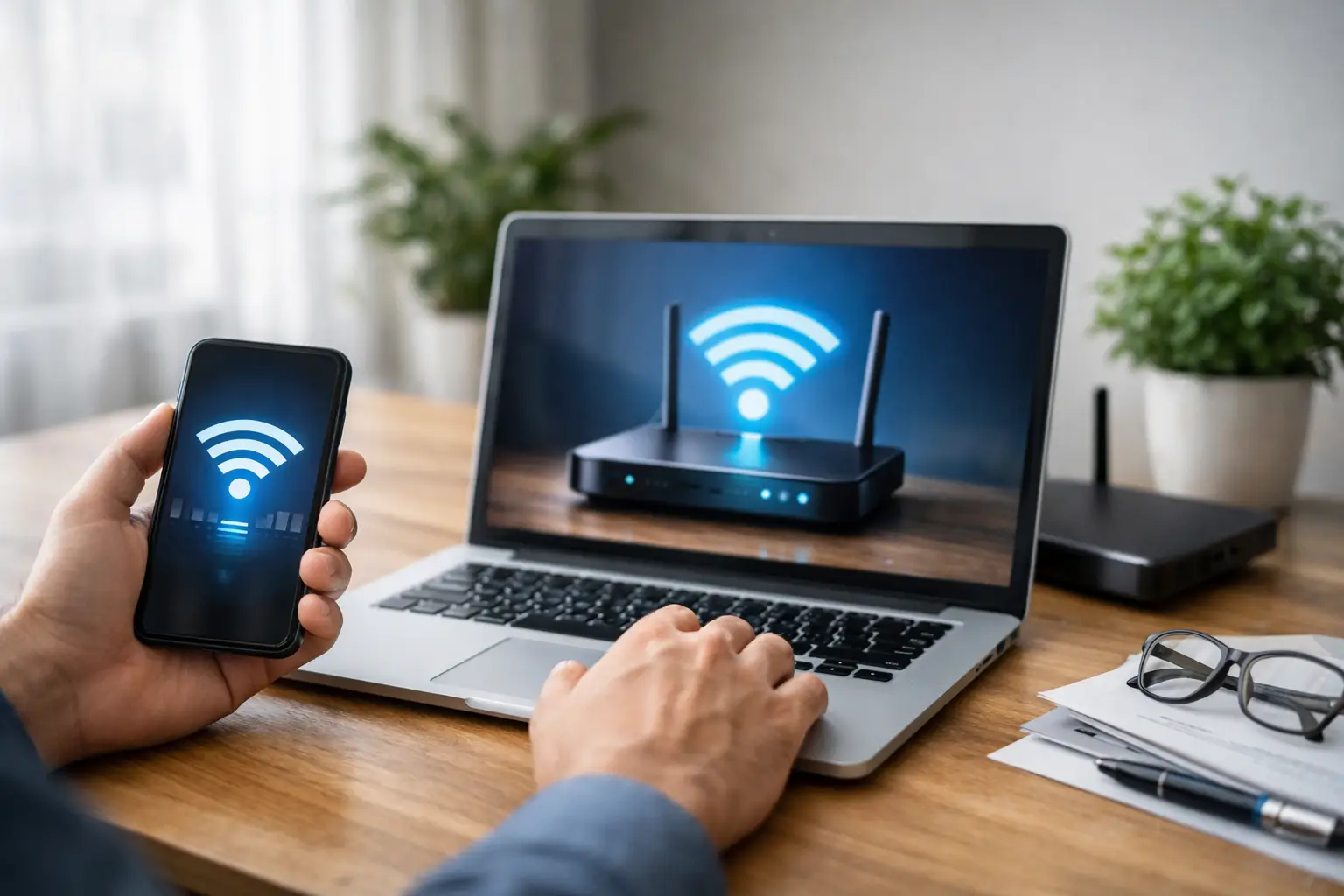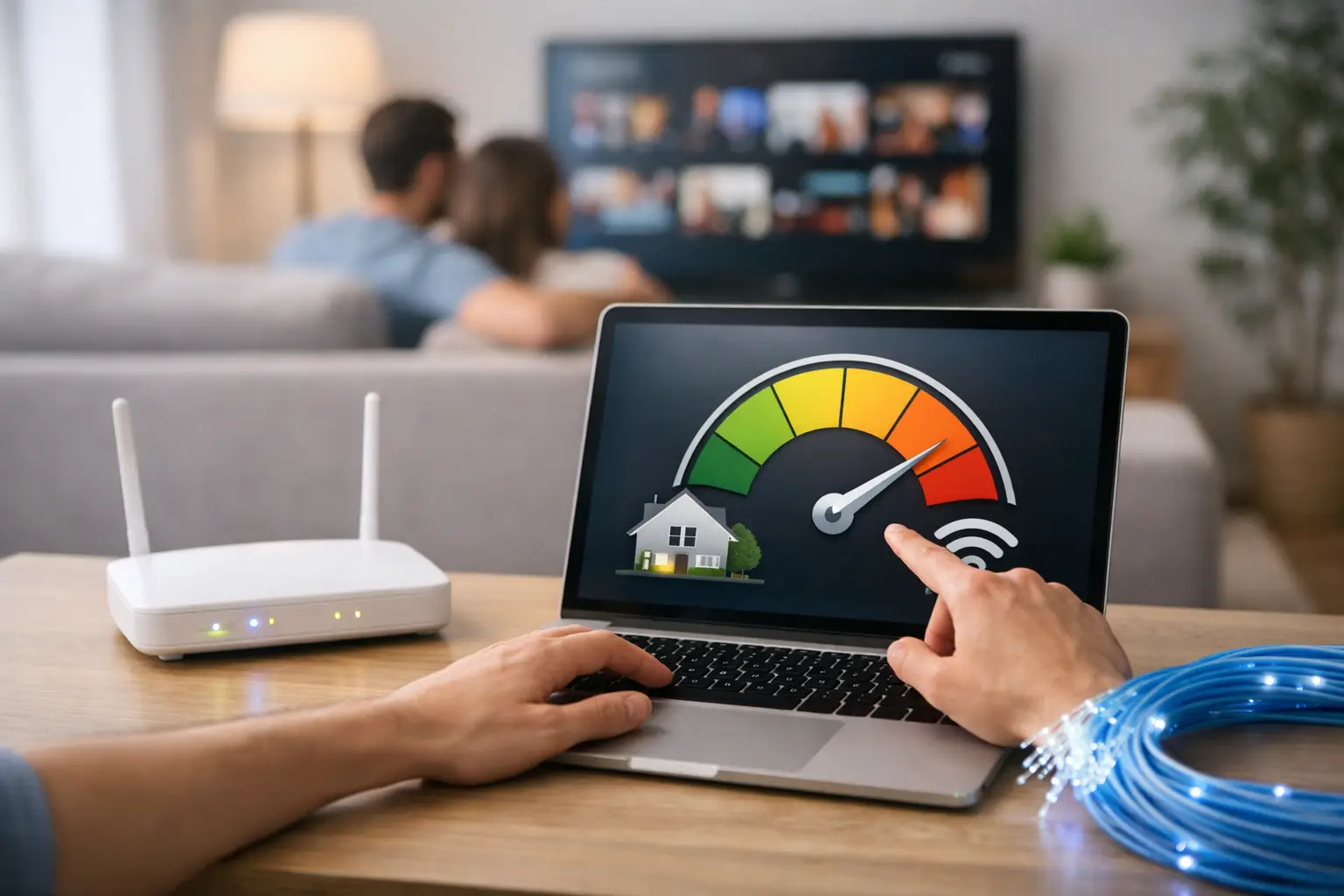
When internet that works perfectly in the living room slows down in the bedroom, video freezes during an online meeting, or the payment screen at the checkout takes too long to load, the cause is usually not your package speed but how the wireless network is distributed throughout your home or workplace. So how do you boost your WiFi signal strength? You need to start in the right place: first, figure out whether the problem is coverage, router settings, the number of connected devices or the internet line itself.
A wireless network carries the signal broadcast by your router through walls, floors, metal surfaces and other electronic devices. That is why no single setting gives the same result in every space. In a small apartment, simply moving the router may be enough, while a home with many rooms or a busy office may need additional network equipment.
How to boost WiFi signal strength: First, find the source of the problem
Do your first check right next to the router. If your phone or computer shows a strong connection but the speed is still low, the problem is more likely the internet line, router performance or the number of devices in use at that moment rather than WiFi coverage. On the other hand, if the connection is good near the router but drops noticeably in distant rooms, your focus should be the wireless signal.
It also helps to run the same test at different times of day. In the evening, if several people at home are streaming, gaming or making video calls, the connection is under heavier load. In workplaces, POS terminals, security cameras, staff phones and guest networks may all share the same wireless network. Knowing which room, which device and which time period the problem occurs in will save you from spending money on equipment you don't need.
Distinguish between speed and signal strength
Full bars on the WiFi icon don't always mean you'll get high speeds. A strong signal shows that your device can easily reach the router, but line capacity, the router's processor and network traffic also affect your experience. Likewise, a high-speed internet package alone won't ensure the signal fully reaches behind thick concrete walls.
This distinction is especially useful when choosing a new package. If a speed test next to the router gives good results but you have problems in distant rooms, improve your home network first. If you don't get the expected performance even next to the router, the better step is to have your infrastructure, package and line values reviewed.
Place your router in the right spot
The fastest and free way to boost your WiFi signal is to reposition your router. Putting it inside a closed TV cabinet, on the floor, next to a metal cupboard or in the farthest corner of your home needlessly limits the signal. An open spot, ideally raised off the floor and close to the center of your living space, provides more balanced coverage.
Try to reduce the number of walls between the router and the rooms you use most. Reinforced concrete walls, bathroom tiles and plumbing, mirrors, large aquariums and metal surfaces can all weaken the signal. If you have to keep the router in the kitchen, keep it some distance from devices such as microwaves, refrigerators and cordless phones.
On routers with external antennas, antenna direction also makes a difference. In single-floor spaces, positioning one antenna vertically and the other closer to horizontal can help different devices receive a better signal. This won't work miracles, but combined with good router placement it makes a small yet noticeable contribution.
Use the 2.4 GHz and 5 GHz networks correctly
Dual-band routers usually offer two wireless networks: 2.4 GHz and 5 GHz. The 2.4 GHz signal travels farther and gets through walls better, but since it is widely used in apartment buildings, it is more prone to interference. 5 GHz can deliver higher speeds at short and medium range, but weakens faster as it passes through walls.
Connecting TVs, computers, game consoles and devices used for video meetings in rooms near the router to the 5 GHz network can be a good choice. For smart home devices or older phones in distant rooms, 2.4 GHz may give more stable results. Giving the networks separate names lets you easily check which device is connected to which band.
Check your channel settings
If there are many WiFi networks in nearby apartments, routers using the same channels can interfere with each other. This is especially common on the 2.4 GHz band. Leaving the channel setting on automatic in the router interface is enough for most users. However, if disconnections continue, manually trying a less congested channel can help.
Monitor the connection for a few days after changing the channel. Making every change at once makes it hard to tell which one actually worked. Taking a screenshot of your current settings before making changes in the router interface also makes it easy to revert if needed.
Keep router firmware and device settings up to date
Routers that haven't been restarted in years can become less stable after heavy use. A simple restart can fix temporary connection issues. If you find yourself needing to do this often, the problem may not be temporary; the router firmware, power adapter, cables or the device itself should be checked.
Up-to-date router firmware can offer advantages in security and connection stability. Operating system updates on phones, tablets and computers can also affect WiFi compatibility. An old device performing poorly in a distant room doesn't mean the whole network is inadequate.
Also check the list of connected devices. If you see devices you don't recognize, change your WiFi password and use a strong, unique password. Setting up a separate network for guests reduces device congestion and security risks on your main network. For businesses, separating staff, guest and critical device networks makes management easier.
Choose the right equipment for larger spaces
If router placement and band settings aren't enough, it's time to consider equipment to expand coverage. The best solution depends on the size of the space, the number of floors and how heavily the network is used.
Range extenders, also known as WiFi signal boosters, pick up the router's signal and rebroadcast it. They are easy to set up and can be an affordable option for a single weak room. However, if an extender is placed where the router's signal is already very weak, it won't deliver the expected benefit. The best location is the in-between zone where the router's signal is still good but coverage is starting to weaken.
Mesh WiFi systems are a more balanced option, especially for homes with many rooms, duplexes and small offices. Because multiple access points work together, devices can switch more smoothly to the best point as you move around. They may cost more than a range extender, but in spaces that need consistent coverage, the difference can be well worth it.
Where running cables is possible, connecting an access point via Ethernet cable gives more stable results than wireless repeating. For example, a wired access point for an upstairs study can be a more reliable solution for remote workers and businesses that transfer large files.
Consider home and workplace use separately
At home, the main need is usually a balanced connection across rooms. Connecting stationary devices such as smart TVs, game consoles and work computers via Ethernet cable reduces the load on WiFi. This allows devices that genuinely need to stay wireless, like phones and tablets, to run more smoothly.
For small businesses, an uninterrupted connection can be even more critical. When POS terminals, printers, cameras, staff devices and guest connections all rely on the same router, a standard home-type setup may fall short. As the number of users grows, a more powerful router, separate access points and network prioritization settings should be considered.
If you rely on latency-sensitive activities like video meetings, cloud backups or online gaming, your router settings may include a traffic prioritization feature. When configured correctly, it gives priority to critical applications. Still, if your total connection capacity is maxed out, changing settings alone won't be enough; you may need to review your usage habits or your internet package.
When do you need support and a package review?
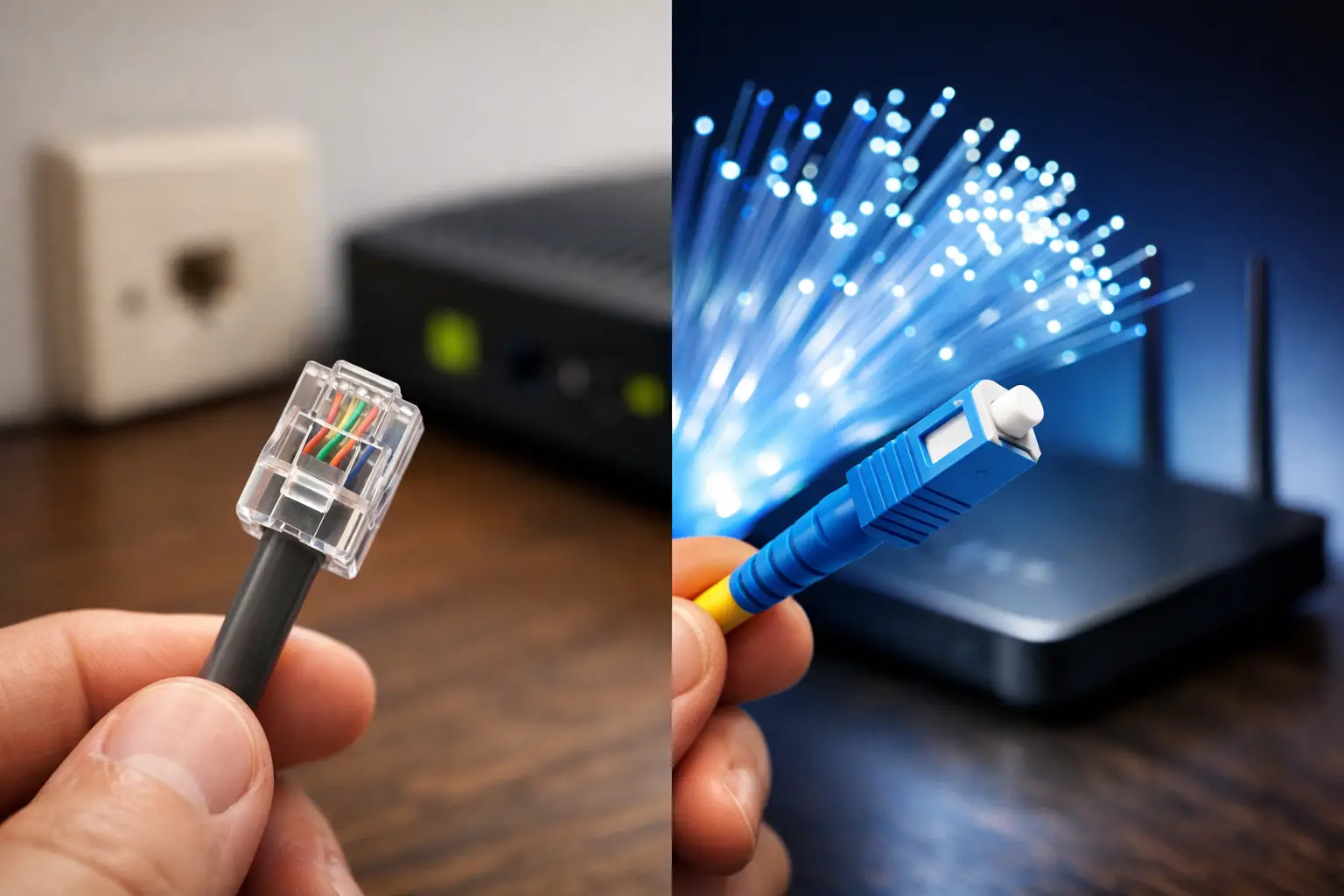
If the problem persists even after moving the router to a central location, choosing the right band and checking your devices, getting technical support will save you time. Especially if you experience frequent disconnections, warning lights on the router, speed drops at certain times of day or performance loss even on a wired connection, your line needs to be inspected.
You can get help with your router, line and package suitability through Tepenet's technical support channels. Sharing your household usage habits and the number of devices at your workplace makes it easier to get a more accurate solution.
WiFi performance doesn't depend on a single button; the right placement, the right band, up-to-date devices and a network setup suited to your needs all work together. Try the free adjustments first, then invest in the equipment your space truly requires. That way, your connection won't just look stronger, it will reliably support your everyday tasks.