Your video call freezing at the most important moment, a payment page that won't load, or a work file stopping halfway through uploading to the cloud is frustrating. So why does your internet connection drop? Sometimes the cause is as close as the modem in your home; other times it can be the building's infrastructure, a crowded wireless environment or work being carried out in your area. Checking things in the right order helps you understand the outage faster and avoid unnecessary steps.
Why does my internet connection drop?
Internet outages don't come from a single cause. The device you connect with, the Wi-Fi signal, the modem, the in-home wiring, the building infrastructure and your internet service provider's network are all links in the same chain. A problem with any one of them can cause the connection to drop completely or the speed to fall noticeably.
First, you need to understand the scope of the outage. Is only one phone or computer unable to get online? Is there no connection on any device in the house? Does the problem only occur on Wi-Fi, or does it continue on devices connected with an Ethernet cable as well? These three questions narrow down where the fault might be considerably.
1. Modem and router problems
When modems stay on for a long time, they can run into temporary software or memory issues. Overheating, an unreliable power adapter, outdated firmware or physical wear can also cause the connection to drop. If your connection goes in and out during the day and comes back on its own after a few minutes, the modem is a good place to start.
The lights on the modem point you in the right direction. If the DSL, Internet or PON light goes off or turns red, it may mean the line isn't reaching the modem. If the Wi-Fi light is on but you can't get online, the wireless network may be working while the modem can't reach the outside world. Since the meaning of the lights can vary by model, check the indicators in your modem's manual.
As a first step, turn off the modem, unplug its adapter and wait about 30 seconds. Then turn it back on and give it a few minutes to fully establish the connection. This can fix temporary issues; however, if outages happen often, simply restarting the modem is not a permanent solution.
2. Weak or congested Wi-Fi signal
If the internet is working but the connection drops in certain rooms, it's usually related to Wi-Fi coverage. Concrete walls, metal surfaces, mirrors and floors can weaken the signal. Keeping the modem in a closed cabinet, on the floor or in the farthest corner of the home also affects performance.
In apartment buildings, neighbouring networks use the same frequencies. Especially when the 2.4 GHz band gets crowded, you may notice pages loading slowly or the connection dropping momentarily, even though your device appears to be connected. Moving the modem to a central, open and preferably elevated spot usually makes a difference.
Newer modems may offer both 2.4 GHz and 5 GHz networks. 2.4 GHz provides wider coverage, while 5 GHz can deliver higher speeds and less interference in areas close to the modem. In large homes or offices, a single modem may not deliver an equal signal everywhere. In that case, consider a mesh Wi-Fi system, an access point or a properly positioned range extender. Keep in mind that a range extender also needs to be installed where it receives a strong signal; it won't magically boost a weak one.
3. Cable, socket and in-home wiring problems
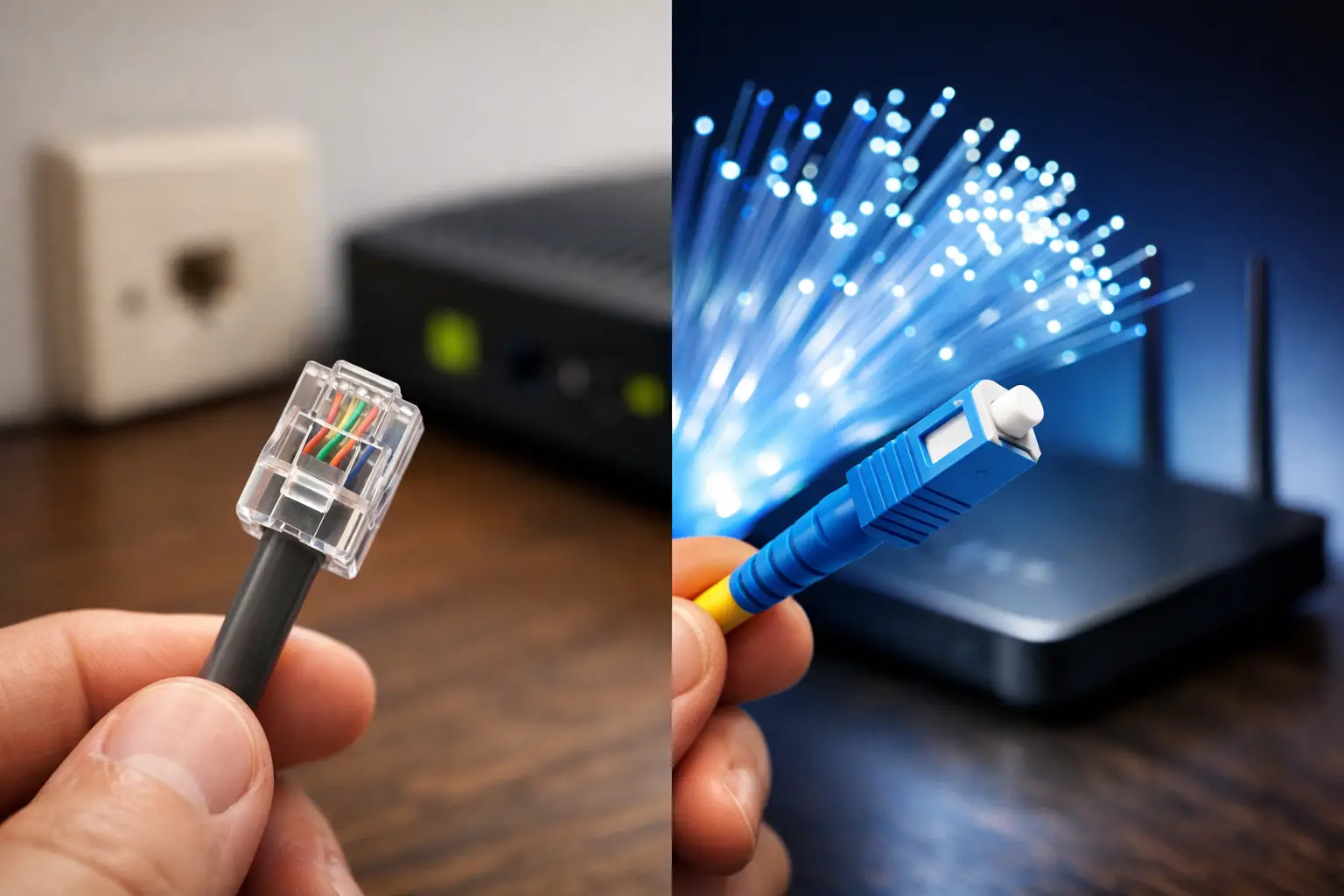
On VDSL connections, the phone line, splitter, RJ11 cable and wall socket connections can be the source of outages. A loose cable, a crushed line, corroded connectors or poor-quality joints can cause the connection to drop frequently. On fiber connections, bending the fiber cable sharply, crushing it or damaging the connector can cause signal problems.
Check your cables, especially if outages started after a move, renovation or rearranging furniture. Make sure the modem cable is firmly plugged into the correct port without unnecessary extensions. When handling cables, avoid touching fiber connectors and don't force the cable. If you suspect physical damage, opening a technical support request is the safest way to resolve the issue before it gets worse.
4. Regional faults or planned maintenance
Sometimes the connection doesn't come back even though everything at home checks out. In that case, an infrastructure fault in your area, power works, cable damage or planned maintenance may be the cause. Maintenance work is occasionally necessary to keep the network healthy and secure; while it may cause brief disruptions, in most cases it supports long-term service quality.
If you suspect a regional issue, check your modem lights and then turn to your service provider's announcements and support channels. Tracking the status of your fault report through digital channels where you can access your subscription details can be more practical than calling repeatedly for updates. Tepenet customers can get up-to-date information about their line more quickly through online services and support channels.
5. Device network settings
If the problem only affects one device, focus on that device's settings rather than the modem or infrastructure. Airplane mode on a phone, a computer connected to the wrong Wi-Fi network, an incorrectly saved old network profile, VPN apps or security software can all block internet access.
First, try connecting to the same network with another device. If other devices work fine, forget the Wi-Fi network on the affected device and re-enter the password. Turning airplane mode on and off, restarting the device and checking for system updates can also help. On work computers, corporate security policies or VPN settings may be in effect, so you may need to consult your company's IT team.
6. Too much simultaneous network use
Some situations that look like an outage are actually caused by shared capacity. If one person at home is streaming in 4K while someone else is gaming online, downloading files and security cameras are recording to the cloud at the same time, the connection can feel congested. In small offices, many devices joining video meetings at once can have a similar effect.
A speed test alone isn't enough to draw conclusions here. Run the test on a single device connected to the modem with an Ethernet cable, ideally with other downloads and streams turned off. Tests over Wi-Fi can be affected by signal quality. If your package speed looks normal but latency rises at certain times of day, look at heavy usage and connected devices on your network.
Check for unfamiliar devices in the modem interface, and keep your Wi-Fi password strong and unique. Use a guest network if needed. For businesses, network settings that prioritise critical devices can help applications such as meetings and payment systems run more reliably.
7. DNS, IP or session authentication issues
In some cases the internet connection technically exists, but certain websites won't open. If one app works while another doesn't, there may be a DNS resolution issue, a browser cache problem or a temporary error on the app's side. Even with normal modem lights, this can make it look to the user as if the internet is completely down.
First, try a different website or app. If you have mobile data, access the same service over the mobile network and compare. If only one platform is affected, the problem may be with that service rather than your internet line. If no websites load but the device appears connected, restart the modem and the device, then report the connection status to the support team.
8. A package that doesn't match your usage needs
Frequent disconnections and an insufficient package aren't the same thing, but they can feel similar to the user. For a family with two people working from home, children taking online classes and high-resolution streaming, a package designed for basic use can feel slow. Likewise, a business using cloud-based software, IP cameras and multiple meetings has different needs than a standard home.
The technology your infrastructure supports also matters. Fiber offers a major advantage for high-capacity and low-latency use. VDSL can be a strong option for everyday use where the infrastructure is suitable. Wireless internet can be a practical alternative in areas where fixed infrastructure is limited. The right choice depends not just on the advertised speed, but on the infrastructure at your address, the number of simultaneous users and your usage habits.
Follow these steps when you have an outage
First, determine whether the problem affects all devices or just one. Then check the modem lights, restart the modem by keeping it off for 30 seconds, and make sure the cables are secure. If it's a Wi-Fi problem, try again close to the modem or, if possible, test with an Ethernet cable.
If there's still no connection after these steps, note when the outage started, the status of the modem lights and which devices are affected. Giving this information to the technical support team speeds up troubleshooting. For recurring outages, don't settle for temporary same-day fixes; request a detailed inspection of the line quality, modem condition and in-building wiring.
When your connection drops, the fastest fix isn't changing settings at random but calmly working out where the problem starts. A few of the right checks will help you get your home internet and your business back up and running sooner.