
When the audio lags in a client meeting, your child is left with a frozen picture during a class, or screen sharing won't start in a team call, the cause is usually not the computer but the conditions under which the connection is being used. Internet requirements for video conferencing go beyond the download speed listed in your package. Upload speed, latency, Wi-Fi quality and the number of devices online at the same time determine the real quality of a call.
For people working from home, students taking online classes and small businesses, the goal is not just to join a call but to keep the audio and video clear throughout. To do that, you need to calculate the speed you actually need and look at the connection type and your home or office network together.
What are the internet requirements for video conferencing?
In video calls, your internet works in two directions: you download the other party's video and upload your own audio and video. That's why upload speed matters just as much as download speed. Especially when the camera is on, screen sharing is active and there are several participants, a weak upload becomes noticeable much faster.
For a single, standard-quality call, 3-5 Mbps download and 1-3 Mbps upload is generally enough. However, these figures describe an ideal scenario in which the connection is used only for the meeting. If someone at home is streaming a series, gaming, backing up files or in another meeting at the same time, your needs increase.
For HD calls with the camera on, aiming for roughly 5-10 Mbps download and 3-5 Mbps upload per user is a safer approach. For Full HD video, meetings with many participants or frequent screen sharing, an upload capacity of 10 Mbps or more makes a clear difference. When calculating total needs for a business, base it on the number of employees in calls at the same time.
For example, in a small office where three employees are in HD meetings simultaneously, you should allow 15-30 Mbps download and 10-15 Mbps upload for these calls alone. Add email, cloud applications, security cameras, POS devices and guest Wi-Fi usage, and you'll need even more capacity.
Three connection values as important as speed
Even if your internet package is fast, your meeting experience may not always be good. That's because video conferencing apps require a continuous, steady flow of data. This is where latency, jitter and packet loss come in.
Latency is the time it takes for your voice or video to reach the other party. Low latency keeps conversations flowing naturally. Values below 50 ms generally provide a comfortable experience; with latency above 100 ms, participants may start talking over each other.
Jitter is when latency doesn't stay consistent. It's one of the common reasons audio works fine one moment and starts stuttering the next. Packet loss is when part of the data sent never reaches its destination. You notice it as skipped frames, robotic-sounding audio or brief dropouts. Seeing a high Mbps figure in a speed test doesn't mean these three values are good too.
On wireless connections in particular, the distance between the modem and the device, walls, neighbouring networks and older devices can increase jitter and packet loss. So if your connection is unstable during meetings, check the Wi-Fi setup in your home or office rather than just upgrading your package.
How to determine the right speed for home users
The most common mistake when choosing home internet is thinking about needs based on a single device. In the evening, while one person is in a meeting, someone else might be watching 4K content, phones might be backing up photos and the smart TV might be downloading an update. All of this shares the connection's available capacity.
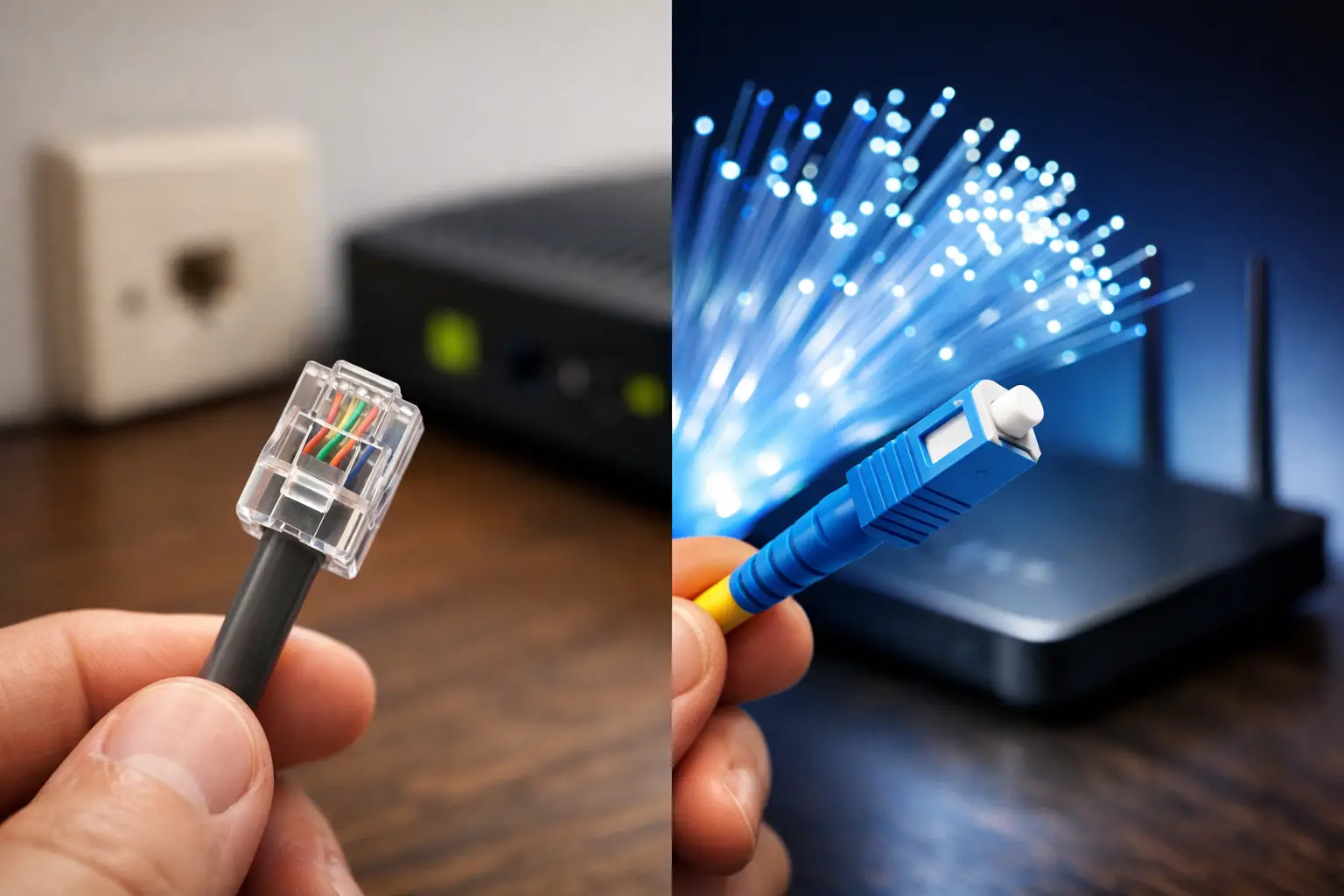
For households of one or two people who make standard calls a few times a week, a well-balanced VDSL connection, or fiber where the infrastructure is available, may be sufficient. In homes with regular remote work, online classes, high-resolution calls and multiple devices, packages with higher upload speeds offer an advantage. Because fiber infrastructure can deliver lower latency and more consistent speeds under suitable conditions, it's a strong option for heavy video call use.
When choosing a package, add "What's the upload speed?" to the question "How many Mbps?". Also keep in mind that the speed in your plan can vary depending on infrastructure, in-building wiring and modem conditions. Checking the infrastructure available at your address is the first step toward realistic expectations.
Capacity planning for small businesses
In offices, video conferencing performance affects much more than one manager's meeting experience. A dropped client call, remote team members having access problems or slow cloud-based applications can directly disrupt your workflow.
When planning for a small business, calculate simultaneous peak usage rather than headcount. Not everyone may be in meetings all day, but during meeting hours five people could easily have their cameras on at the same time. Your connection should leave room for this. Setting aside at least 30-50 percent extra capacity above your calculated minimum delivers more stable results during sudden usage spikes.
If possible, the office network should be configured separately for employees, guests and security devices. Heavy downloads over the guest network shouldn't affect employees' video calls. Using Ethernet for desktop computers that can be wired reduces Wi-Fi-related fluctuations.
Why do Wi-Fi settings change meeting quality?
Even if your internet line is strong, an old modem or a poorly placed router can make the connection seem weak. Placing the modem inside closed cabinets, near metal surfaces or in the farthest corner of the house hurts signal coverage. A central, open and preferably elevated location gives better results.
For newer devices at close range, the 5 GHz Wi-Fi network usually offers higher speeds and less interference. The 2.4 GHz band, on the other hand, can reach rooms further away. In large homes or offices with many rooms, a single modem may not provide an even signal everywhere. In that case, mesh systems, access points or additional wired solutions are worth considering.
Before a meeting, use your computer close to the modem if possible. If you're giving an important presentation, an Ethernet cable is the most predictable way to connect. Pausing large file uploads, game downloads and cloud backups at the same time also keeps your upload capacity free for your call.
What should you do when you have problems during calls?
When a problem occurs, first try to figure out where the connection is weakening. If other devices on the same Wi-Fi network are also slow, the issue may be overall network congestion or the modem. If it only happens on one computer, check the device's Wi-Fi adapter, background applications or the app's settings.
Turning the modem off, waiting a short while and restarting it can fix temporary connection issues. After that, it helps to run a speed test close to the modem and, if possible, compare it with a wired connection. If performance is good over cable but weak over Wi-Fi, focus on your wireless network rather than your internet package.
For recurring outages, low speeds or consistently high latency, contacting technical support is the right step. Telling the support team when the problem occurs, which device you're using and the results of your wired and wireless tests will speed up the resolution process.
The right connection for video conferencing is less about choosing the fastest package and more about having a speed that matches your usage habits, sufficient upload and a well-configured network. By assessing simultaneous usage at your home or workplace and comparing the options available on your infrastructure, you can enjoy a more controlled and uninterrupted experience in your calls.