
Losing your connection just as a meeting starts, the kids' online class begins or a payment is waiting at the checkout is frustrating. Knowing what to do first during an internet outage helps you quickly figure out whether the problem comes from the setup inside your home or office, a device, the Wi-Fi network or a regional issue. Following the right order prevents unnecessary changes to modem settings and shortens resolution time if you need to open a support request.
7 checks to make first during an internet outage
1. Find out whether the problem affects only one device
First, try connecting to the internet with your phone, computer and, if possible, another device. If only one device can't get online, the problem usually isn't the modem but that device's Wi-Fi settings, airplane mode, network driver or VPN app.
If several devices can't connect at the same time, move on to checks on the modem and service side. This simple distinction saves critical time, especially for remote workers and small businesses. When only one device is affected, forgetting the network on that device and reconnecting is a better first step than restarting the entire network.
2. Distinguish the Wi-Fi connection from the internet connection
Seeing the Wi-Fi icon on your phone doesn't mean you're online. Your device may be connected to the modem while the modem itself can't reach the outside world. Try opening a different website in your browser; if only one app isn't working, consider an app-related issue rather than a general outage.
If possible, connect your computer directly to the modem with an Ethernet cable. If the wired connection works but Wi-Fi doesn't, your internet line is active; the focus should be on wireless signal strength, modem placement or Wi-Fi settings. This distinction is especially useful in large homes, offices with thick walls and rooms far from the modem.
3. Calmly check the modem lights
The lights on the modem give a quick hint about where the outage might be. A steady power light means the device is on, and a lit Wi-Fi light means it's broadcasting a wireless signal. The meaning of lights such as DSL, Internet, WAN, PON or LOS depends on the infrastructure in use.
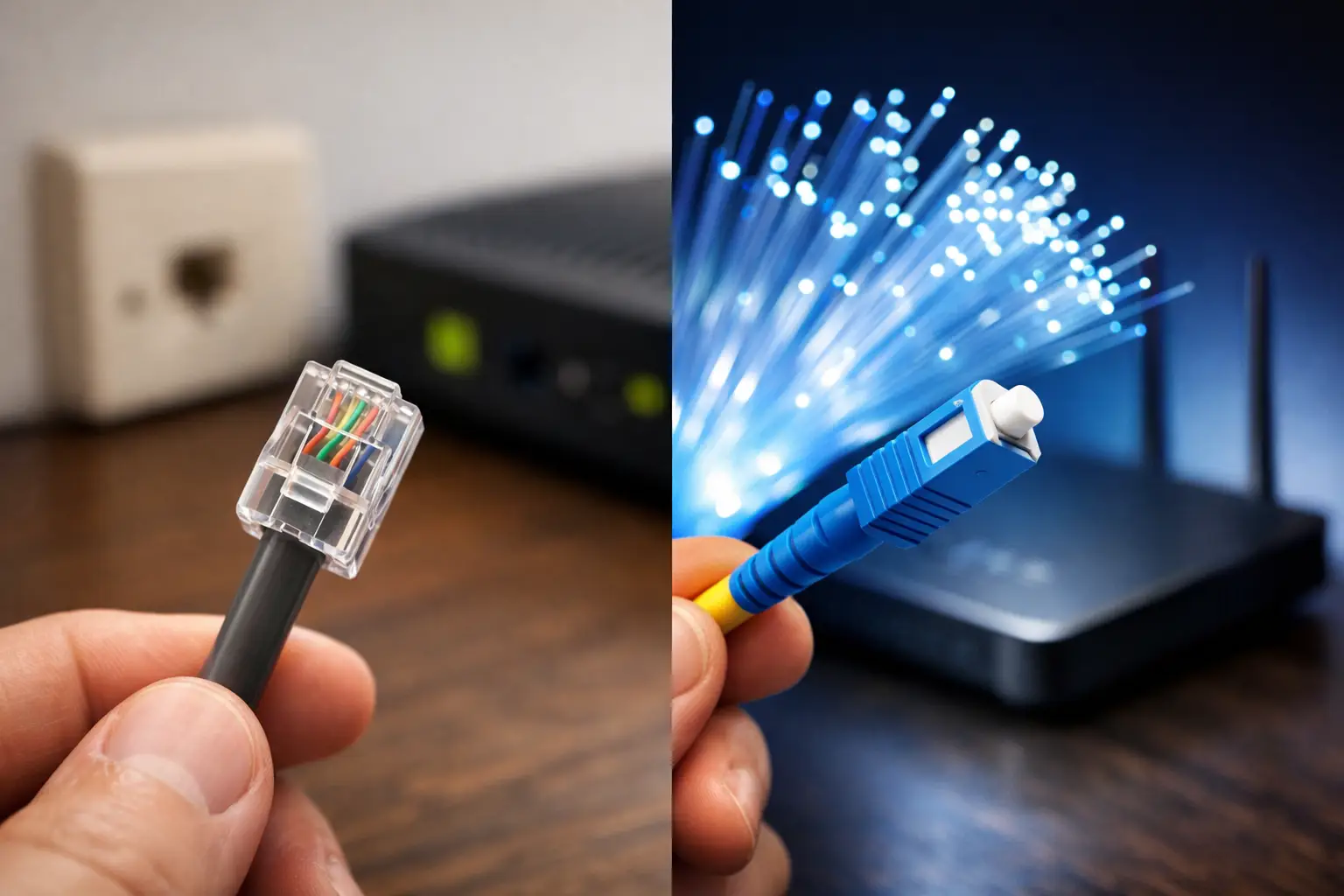
On a VDSL connection, a blinking or unlit DSL light may indicate that line synchronization can't be established. On a fiber connection, the normal state of the PON light and a warning on the LOS light may point to a need to check the optical signal. However, light names vary by modem model, so it isn't right to make a definitive diagnosis based on a single light.
While checking the lights, make sure the internet, DSL or fiber cable on the modem hasn't come loose. Cables getting dislodged during cleaning, moving or rearranging a desk is a common occurrence. Simply reseat the cables gently, without forcing them.
4. Restart the modem the right way
If the cables are properly connected, turn the modem off with its power button or unplug its adapter from the outlet. Wait at least 30 seconds, then turn it back on. This time is needed for the modem to clear temporary connection errors and recognize the line again.
After the modem turns on, it may take a few minutes for the lights to stabilize. Don't switch the device off and on repeatedly at this stage. Especially on DSL infrastructure, frequent restarts can cause the line to be detected as unstable and delay the connection's return to normal.
An important point here is not to press the small reset button on the back of the modem. Restoring factory settings can erase your username, password and custom network settings. Don't use the reset button unless the support team recommends it.
5. Check the power supply and local network equipment
If the outage began after a power surge or a brief power cut, check the modem's adapter and the outlet. If another device plugged into the same outlet works, a faulty outlet is less likely. If you use a power strip, also make sure its switch isn't turned off.
Offices may have additional equipment between the modem and devices, such as a switch, access point, mesh system or firewall. If the internet line is active but only certain rooms or computers can't connect, these devices should be checked. For businesses, the most practical method is, whenever possible, to connect a computer directly to the main modem, bypassing the local network equipment to isolate the source of the problem.
6. Check for regional outages and your subscription status
If the basic checks at home or work haven't helped, there may be regional maintenance, infrastructure work or a temporary situation affecting service. Asking neighbors in your building or nearby who use the same provider whether they're having similar problems can quickly confirm this possibility.
In addition, situations such as subscription changes, a scheduled relocation, an unpaid bill or a new installation activation can also affect your connection. Checking service status and announcements through digital customer channels gives you clarity before contacting support. Tepenet subscribers can track their requests more quickly using the digital channels provided for service management.
7. Prepare the right information for a support request
If there's still no connection after the basic checks, contacting technical support is the best next step. Before calling, note down your subscription details, the approximate time the outage began, your modem's brand and model, and the status of the modem lights. This information helps the team go straight to the right checks without asking the same questions again.
Also share whether the problem affects all devices or just one, whether you tried a wired connection and when you restarted the modem. For businesses, it's important to mention whether critical services such as POS terminals, IP phones, security cameras or remote access are affected, because the priority of the required solution may vary depending on the use case.
What not to do during an outage
Randomly changing settings in the modem interface when the internet is down can make the problem worse. If PPPoE credentials, VLAN settings, the wireless network name or security options are changed incorrectly, a new configuration issue may arise even if the original problem goes away.
For the same reason, turning the modem off and on many times in a row or restoring factory settings isn't a good solution. First isolate the connection issue, check the modem lights, do one controlled restart and then move on to the support process. What gets results isn't acting fast, but following the right order.
Tips to reduce the impact of outages at home and at work
In households with heavy internet use, keeping the modem in a central, well-ventilated spot rather than inside a closed cabinet improves Wi-Fi quality. Keeping the modem away from microwave ovens, cordless phone bases and large metal surfaces also helps the wireless connection work more consistently. These measures won't prevent infrastructure-related outages, but they can reduce Wi-Fi-related dropouts.
For small businesses, creating a simple continuity plan for critical operations is helpful. For example, having enough mobile data on the manager's phone can provide an alternative connection for payments or communication. Businesses using cameras, POS systems or cloud applications have different connectivity needs than standard home use; this demand should always be taken into account when making your package and infrastructure choice.
During an outage, the best approach isn't to try every setting but to narrow down the problem step by step. When you check the device, Wi-Fi, modem, cables and service status in this order, you'll reach the right step to restore your connection much faster.