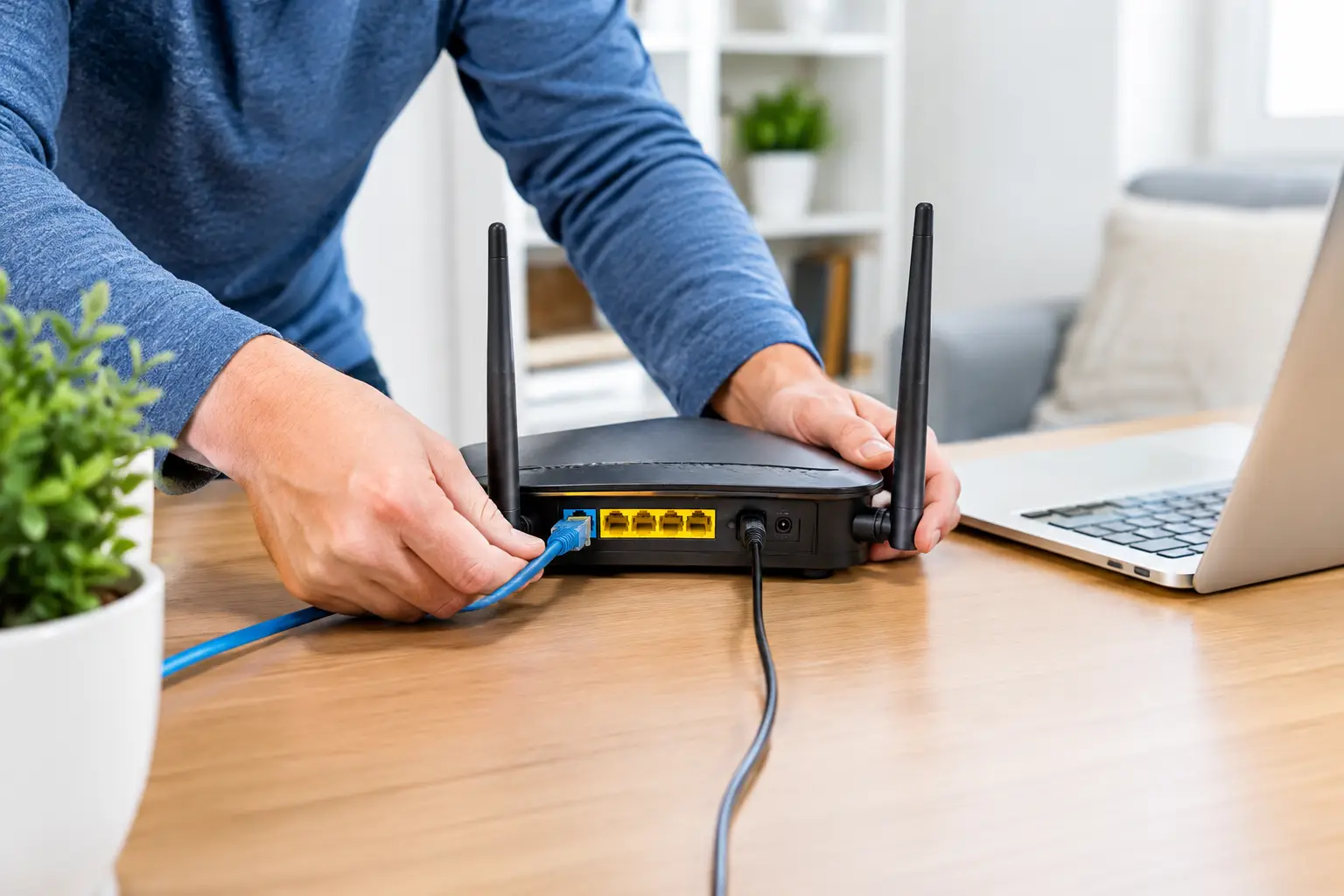
Once your new internet subscription is active, a few basic steps are usually all it takes to start using your connection. So how do you set up a modem at home? Plugging the right cable into the right port, knowing your connection type and completing a few settings in the modem interface usually does the trick. However, the process is not the same for fiber, VDSL and wireless internet connections.
Before you begin, make sure your internet service is active. If your subscription activation is not complete, you may not be able to get online even if the modem lights look normal. If you need a username, password or automatic setup details, you can get them from your service provider's online service channels or support team.
First, identify your connection type
The most critical part of setup is knowing what kind of infrastructure your home has. Although the ports on the back of the modem may look similar, connecting to the wrong port will leave you without internet.
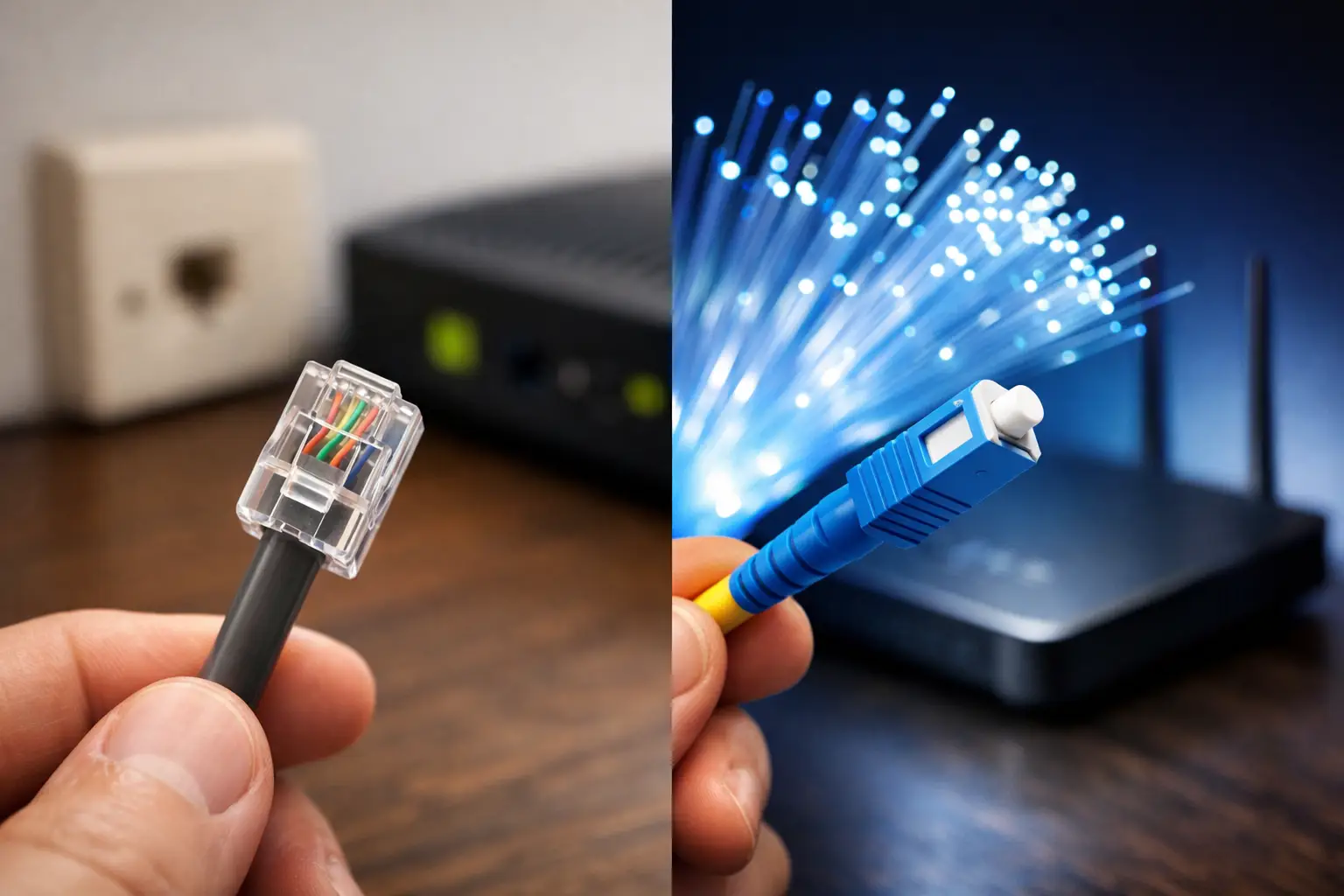
VDSL or ADSL connections use the telephone wall socket. If you get internet over a phone line, you need to plug the thin telephone cable into your modem's DSL port. If you also use a landline at home, a splitter separates the phone and internet signals and reduces the risk of interference.
With a fiber connection, the fiber cable coming into your home usually does not connect directly to the modem. It first connects to a fiber converter device called an ONT. An ethernet cable from the ONT's LAN port is then plugged into the modem's port labeled WAN or Internet. In some homes, the ONT and modem are combined into a single device. In that case, you may not need a separate WAN cable.
With fixed wireless internet, the ethernet cable coming from the outdoor antenna or receiver connects to the modem's WAN port. Plugging this cable into the DSL port is a common mistake. The correct port may be labeled WAN, Internet or marked with a globe icon.
Prepare the necessary equipment before setup
To avoid interruptions during setup, have your modem, power adapter, ethernet cable and the line suited to your connection type ready. If you have a computer, doing the initial setup over an ethernet cable is more reliable; you can easily change the Wi-Fi settings afterward. That said, you can also access the modem interface from a phone or tablet.
Check the label on the bottom of the modem. It usually lists the default Wi-Fi network name, wireless password, management interface address and initial login details. You will use this information during setup. Keep in mind that the Wi-Fi password on the label is different from the username and password for your internet subscription.
1. Connect the cables to the correct ports
First, plug the connection cable into the appropriate port. Use the DSL port for VDSL, and the WAN/Internet port for fiber or wireless connections. Then plug the modem's power adapter into an outlet and turn the device on.
If possible, place the modem in a central, open and elevated spot in your home. Metal cabinets, the area behind a TV, thick concrete walls and microwave ovens can weaken Wi-Fi coverage. Especially for people working remotely, taking online classes or families using smart TVs, the modem's location directly affects connection quality.
2. Wait for the modem lights to come on
After the device powers on, it may take a minute or two for the lights to stabilize. A lit power light shows that the modem is working. The DSL light indicates that the VDSL/ADSL line has been detected, while the WAN light indicates a connection coming in over ethernet. The Internet light does not use the same color on every model; on most devices, a steady light means a successful connection.
A blinking light does not always mean a fault. Brief blinking is normal while the modem is starting up or syncing with the line. However, if the DSL light does not come on at all, check the phone cable and socket; if the WAN light is off, check the ethernet cable and whether the ONT device is turned on.
3. Log in to the modem's management screen
Connect your phone or computer to the default Wi-Fi network shown on the modem. For a more stable initial setup, you can connect your computer to one of the modem's LAN ports with an ethernet cable.
Open a browser and enter the local address printed on the modem label. On most models, this is a numeric IP address. The screen that appears will ask for a username and administrator password. These may be printed on the bottom of the device, or you may be asked to set a new password on first login.
Change the management password to one that is hard to guess. Using an administrator password that is different from your Wi-Fi password is a better security practice. Keep this password somewhere safe; if you forget it, you may need to reset the device.
4. Complete the internet connection settings
The modem interface will have a section such as Quick Setup, Internet Setup or WAN Settings. Some modems detect the connection type automatically. If automatic setup succeeds, you may get internet access without any further steps.
If a username and password are required, enter the subscription details provided by your service provider. These are generally needed for PPPoE connections. Mistyping the username or password will prevent web pages from loading, even if the modem lights look normal.
Fiber and fixed wireless connections usually use a WAN connection type, while VDSL relies mainly on DSL and PPPoE settings. In the advanced menus, you may see technical fields such as VLAN ID, VPI/VCI or similar. Unless your service provider has given you specific values, do not change these fields at random. An incorrect value can cause the connection to drop.
5. Change your Wi-Fi network name and password
Once the internet connection is established, go to the Wireless Network or Wi-Fi Settings section. Instead of using details that clearly identify your home, your phone number or your apartment number, choose a name that is easy to recognize but contains no personal information.
Your wireless password should be at least 12 characters long and include uppercase and lowercase letters, numbers and symbols. If possible, choose the WPA2 or WPA3 security standard. If older devices cannot connect with WPA3, WPA2/WPA3 mixed mode may be a good option.
Dual-band modems offer both 2.4 GHz and 5 GHz networks. 2.4 GHz provides wider coverage but can be more affected by nearby networks. 5 GHz can deliver higher speeds and lower latency in rooms close to the modem. Connecting heavily used devices such as smart TVs, game consoles and work computers to 5 GHz can give good results, while 2.4 GHz may be more stable for devices in distant rooms.
6. Test the connection on your devices
Save the settings on the setup screen and, if the modem restarts, wait for the lights to stabilize. Then open a website, play a video or check a video calling app. If only one device has a problem, try turning that device's Wi-Fi off and on again before touching the modem.
When running a speed test, use a computer connected to the modem with an ethernet cable if possible. On Wi-Fi measurements, the device's location, the number of walls, the band in use and the number of connected devices can all affect the results. Some drop from your package's speed may be normal; what really matters is that the connection is consistent and meets your needs.
7. If there is no internet, run these checks
If setup is complete but there is still no internet, first turn the modem off, wait 30 seconds and turn it back on. If you use fiber, check the ONT device as well. Make sure the cables are not loose, your internet service is active and the correct account details have been entered.
The following situations can help you pinpoint the source of the problem more quickly:
- If the DSL light is off, check the phone line, socket, splitter or the building's internal wiring.
- If the WAN light is off, check the ethernet cable between the ONT and the modem and make sure the correct WAN port is used.
- If the Internet light is red or off, the username, password or connection settings may be incorrect.
- If Wi-Fi is visible but pages won't load, the modem may not be connected to the internet; test with another device as well.
- If signal problems occur only in distant rooms, moving the modem or adding an extra wireless access solution may be more effective.
Try these steps before resetting the modem to factory settings. A reset erases all settings and requires a full setup again. If the problem persists, giving the support team your modem's brand and model, the status of the lights and the checks you have done will speed up the solution. With a service provider offering accessible technical support like Tepenet, these details help you get the right guidance faster.
Once setup is complete, share your Wi-Fi password only when necessary, don't postpone modem firmware updates, and make it a habit to check the lights whenever you notice anything unusual with your connection. Small checks help your home internet run more securely and reliably.