When your internet suddenly slows down or drops completely, the small LED lights on your modem tell you where the problem starts. Knowing the answer to what do modem lights mean lets you quickly check your wireless network, building infrastructure or device settings instead of waiting around unnecessarily. Light names and colours may vary slightly by brand and model, but the basic logic is the same on most devices.
What do modem lights mean?
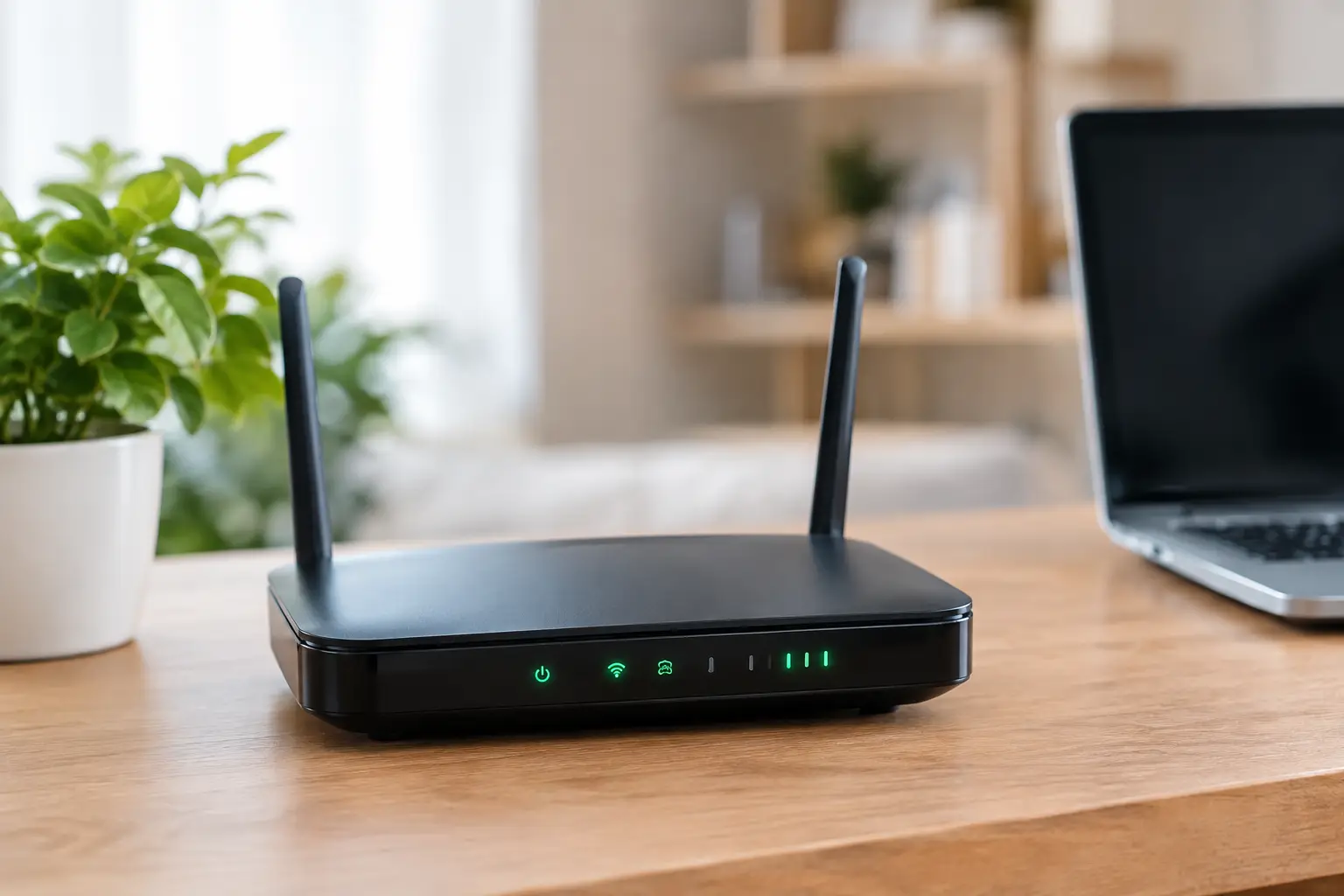
The lights on a modem show that the device is receiving power, communicating with the internet infrastructure and distributing the connection to devices in your home or workplace. A solid green or white light usually means the connection is working. A blinking light indicates data traffic, while a red or orange light usually signals something that needs attention.
Still, judging by colour alone is not enough. For example, on some modems a blinking Internet light means normal traffic, while on others a continuously blinking DSL light shows that line sync cannot be established. So first check the name of the light, then its colour and behaviour.
Power light: Is the modem on?
The Power, PWR or power light shows that the modem is receiving electricity. If it is solid, the device is on and basically ready to work. If it is not lit at all, check that the adapter is fully plugged into the socket, that the socket has power and that the adapter cable is firmly connected to the modem.
If the Power light keeps blinking, the modem may be booting up, installing an update or, rarely, experiencing a hardware fault. Wait a few minutes after the device turns on. If the light does not return to normal, switch off the adapter and modem and restart them after a short while. If the problem continues, contacting technical support is the safer step.
DSL or ADSL/VDSL light: Is the line connected?
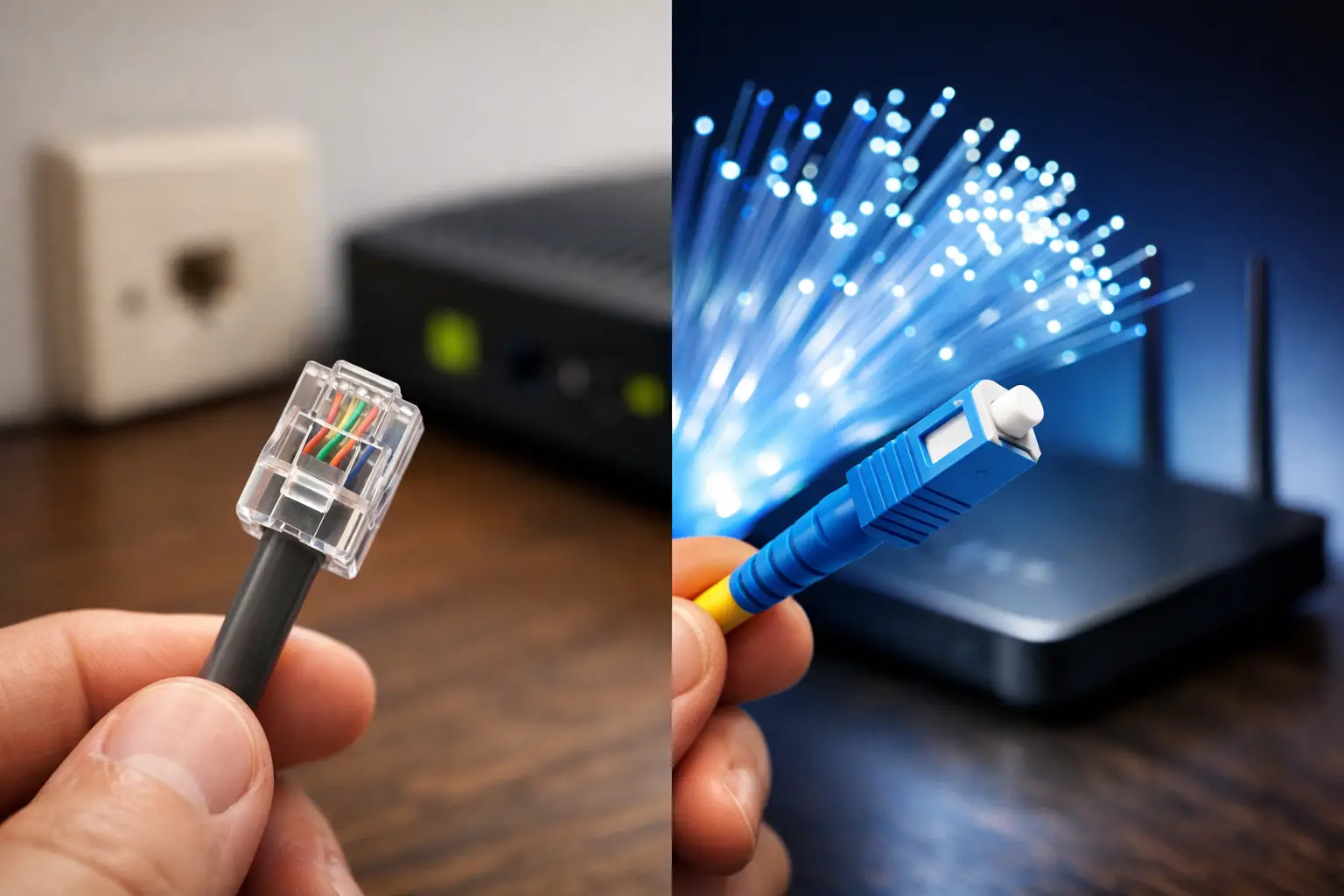
The DSL light shows the internet signal coming through the telephone line. For subscriptions using VDSL and ADSL, it is one of the most critical indicators. A solid DSL light means sync between the modem and the infrastructure has been established.
If the light is blinking, the modem may be detecting the line but unable to complete the connection. If it is not lit at all, there may be a problem with the in-building cabling, the phone socket, the splitter or the external infrastructure. Additional devices connected to the phone line, loose cables and damaged sockets can also affect DSL sync.
In this case, check the thin telephone cable going into the modem. If possible, remove any extension cable and connect the modem directly to the main socket. If you have a landline phone, using a splitter is also important. If the DSL light still does not become solid, the problem may not be on your side; open a support request and ask for a line check.
Internet light: Do you have internet access?
A solid DSL light does not always mean you have internet access. The Internet, WAN or globe-icon light shows whether your modem has connected to the service provider's network. On most models, a solid green or white light means internet access is active.
If this light is red or off, the modem may have synced with the line but failed to complete user authentication. An incorrect username and password, temporary network maintenance, subscription status or a regional outage can cause this. The Internet light may also stay off after settings have been changed in the modem interface.
As a first step, turn the modem off, wait 30 seconds and turn it back on. If the DSL light is solid but the Internet light does not come on, do not change modem settings at random. Especially in businesses, changing WAN and security settings can make access even harder. Telling technical support the current state of your modem lights speeds up the resolution process.
Wi-Fi light: Is the wireless network broadcasting?
The Wi-Fi or WLAN light shows that the modem is broadcasting a wireless network. A lit light means the wireless network is on, and blinking means data is being exchanged with phones, computers, TVs or other devices.
If the Wi-Fi light is off while the Internet light is on, you have an internet connection but wireless broadcasting is disabled. The Wi-Fi button on the modem may have been pressed by accident. On some models, pressing this button for a few seconds turns the wireless network off or on.
If the wireless network is visible but the internet is not working, first try the same connection with an Ethernet cable. If the wired connection works but Wi-Fi does not, the problem is most likely coverage, wireless channel congestion or the device's network settings. Placing the modem inside a closed cabinet, thick concrete walls and the distance between the modem and the device can all reduce signal quality.
Why do the 2.4 GHz and 5 GHz lights light up separately?
On dual-band modems, the 2.4 GHz and 5 GHz networks may be shown by separate lights. 2.4 GHz offers wider coverage but is more prone to interference in apartment buildings and crowded areas. 5 GHz can provide higher speeds and lower latency near the modem, but its ability to pass through walls is more limited.
If the 5 GHz network is not visible in a room, that does not always mean there is a fault. As distance increases, your device may connect better to the 2.4 GHz network. For speed-sensitive uses such as video calls, online gaming or high-quality streaming, 5 GHz can be preferred when you are close to the modem.
LOS and PON lights: What do they show on fiber modems?
Where fiber internet is used, there may be a fiber modem, also called an ONT. The PON light on these devices shows that a connection to the fiber network has been established. A solid green PON light usually means the connection is healthy.
The LOS light stands for "Loss of Signal". A red or blinking LOS light indicates that the fiber signal is not reaching the device. A sharply bent or disconnected fiber cable, or a problem with the building infrastructure, can cause this.
Fiber cables are delicate. Do not pull the cable, do not unplug its end and do not try to repair sections that look broken yourself. Checking the ONT's power connection and restarting the device are safe first steps. If the LOS warning persists, an inspection by the technical team is required.
LAN light: Is a wired device connected?
LAN 1, LAN 2 or Ethernet lights show that a device such as a computer, security camera, smart TV or switch is connected to the modem with a network cable. A lit light indicates a physical connection, and blinking indicates data traffic.
If your computer cannot get online but phones on Wi-Fi can, check the Ethernet cable and the LAN port it is plugged into. Trying the cable in a different LAN port can help determine whether the problem is the port or the cable. A broken clip on the cable connector can also cause a loose connection.
WPS light: What should you do for security?
WPS is a feature that lets you connect a device to a Wi-Fi network without typing the password. The WPS light usually blinks only during pairing. If it appears constantly active, the WPS button on your modem may have been pressed by accident.
For security on home and business networks, it is a good idea to keep WPS turned off when you do not need it. When sharing your wireless network name and password, avoid easily guessable information. Especially in businesses, using a guest network helps keep employee devices and business data separate.
Steps to follow when modem lights show a problem
To isolate the problem as quickly as possible, first make sure the Power light is on. Then check the DSL light for a VDSL or ADSL connection, or the PON and LOS lights for a fiber connection. If the line connection is healthy, look at the Internet light, and finally at the Wi-Fi or LAN lights.
Restarting the modem works for most temporary connection problems, but restarting it frequently is not a permanent solution. Especially if there is an ongoing warning on the DSL or LOS light, tell the support team the name of the light, its colour and whether it is blinking. This small detail helps the teams classify the fault more accurately.
Leave resetting the modem to factory settings as a last resort. This can erase settings such as your internet username, wireless network name and password. If you do not have these settings to hand, you may need support to set up your connection again.
Reading your connection status correctly helps you resolve outages at home faster and shortens the process when support is needed. If the problem continues after checking the lights, the most practical option is to ask technical support for help without leaving your internet down.