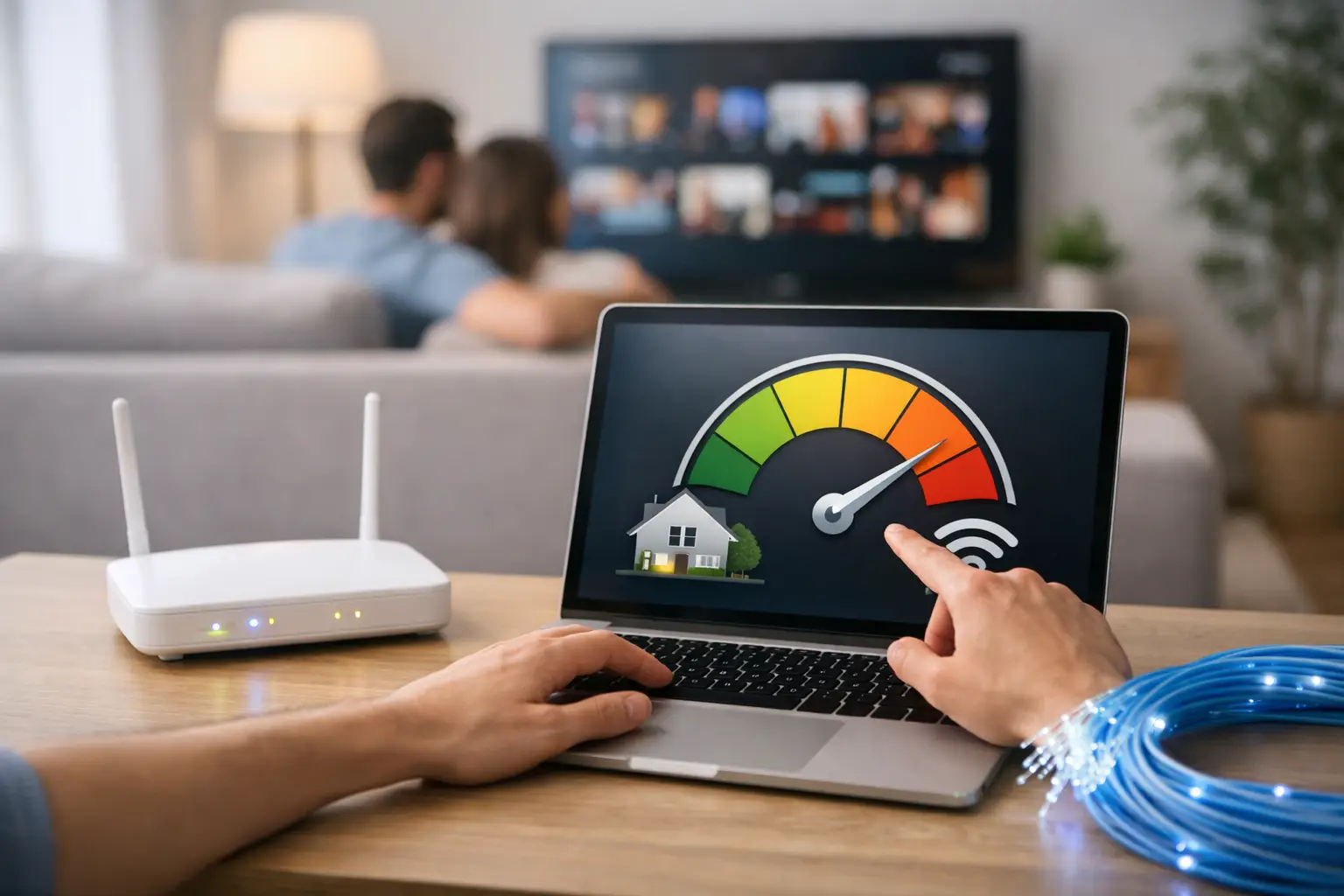

The speed listed in your internet package and the speed test result you see on screen may not always match. This speed test guide helps you evaluate your connection correctly instead of jumping to the wrong conclusion from a single measurement. Brief freezes while watching a film at home, audio delays in video meetings, or cloud applications that load slowly at work are each linked to different values. That's why you need to look at the whole test, not just the download speed.
What does a speed test measure?
A speed test measures the current performance of the connection between your device and the test server. The result reflects your present usage conditions more than the theoretical capacity of your internet line. Wi-Fi signal, the number of devices connected at the same time, modem placement, the load on the selected server and the condition of your computer can all affect the measurement.
So a single test result is not a definitive, unchanging profile of your connection. For a sound assessment, run several tests at different times and look at the overall trend. Comparing results taken in the evening, with multiple devices active at home, and over a wired connection gives a more realistic picture.
Four key values stand out in a speed test: download speed, upload speed, ping and jitter. Each one explains a different part of your experience.
Download speed: How fast does content arrive?
Download speed is your capacity to receive data from the internet to your device, expressed in Mbps. Video platforms, websites, game downloads, file transfers and app updates are all affected by this value. In households that stream high-resolution video, use several screens at once or frequently download large files, download speed makes a noticeable difference.
However, a high Mbps figure doesn't solve every problem. For example, if the picture freezes during a video call, the issue may not be caused by download speed alone. Upload speed, ping or Wi-Fi coverage in your home may matter more.
Upload speed: The strength of the data you send
Upload speed is how well your device sends data to the internet. It matters for video meetings, live streaming, uploading files to the cloud, transferring security camera footage and file sharing among remote teams.
If someone working from home uploads large presentation files, or your business sends data through cloud-based software all day, evaluate upload speed separately. A connection with an impressive download figure can still feel slow in your daily workflow if it doesn't meet your upload needs.
Ping and jitter: Reading latency correctly
Ping is the time it takes for data to travel from your device to the server and back, measured in milliseconds. The lower the value, the better the connection's response time generally is. Online games, video meetings, remote desktop connections and internet calls all benefit from low ping.
Jitter shows how consistent that latency is. Even if your ping sometimes looks low, high jitter can cause audio dropouts, video stuttering or momentary lag in games. That's why ping and jitter should be evaluated together, especially for real-time applications.
Speed test guide: Preparing for an accurate measurement
A little preparation before starting the test makes the result far more meaningful. If possible, connect your computer to the modem with an Ethernet cable. A wired test removes Wi-Fi signal loss from the equation and shows your line's performance more clearly.
If you need to test over Wi-Fi, stay close to the modem. Thick walls, metal surfaces, different floors and some electronic devices can weaken the wireless signal. If you get good results right next to the modem but low speeds in your room, the issue is more likely in-home coverage than the infrastructure.
During the test, pause background downloads, cloud backups, video streams and updates. Other devices on the same network also affect the result. A test run while someone is watching a 4K stream or downloading a game won't show your line's speed when idle.
If possible, choose a nearby test server. Then repeat the test at least three times at different times of day. If there are large differences between measurements, note the time and which device you used. Should you need technical support, these details help the issue be understood more quickly.
What should you do if the result is lower than your package speed?
First, separate the connection type from the test conditions. If you consistently get low results even on a wired connection, check how long your modem has been running, the condition of your cables and your device's network card specifications. Old or damaged Ethernet cables can prevent you from reaching expected performance. Turning the modem off, waiting a short while and restarting it can also fix temporary connection problems.
On the Wi-Fi side, modem placement is a critical factor. Instead of keeping the modem in a closed cabinet, on the floor or in a far corner of the home, place it in a central, open spot. In large homes or offices with many rooms, a single modem may not deliver the same signal quality everywhere. In that case, a coverage solution may be a better investment than upgrading your speed package.
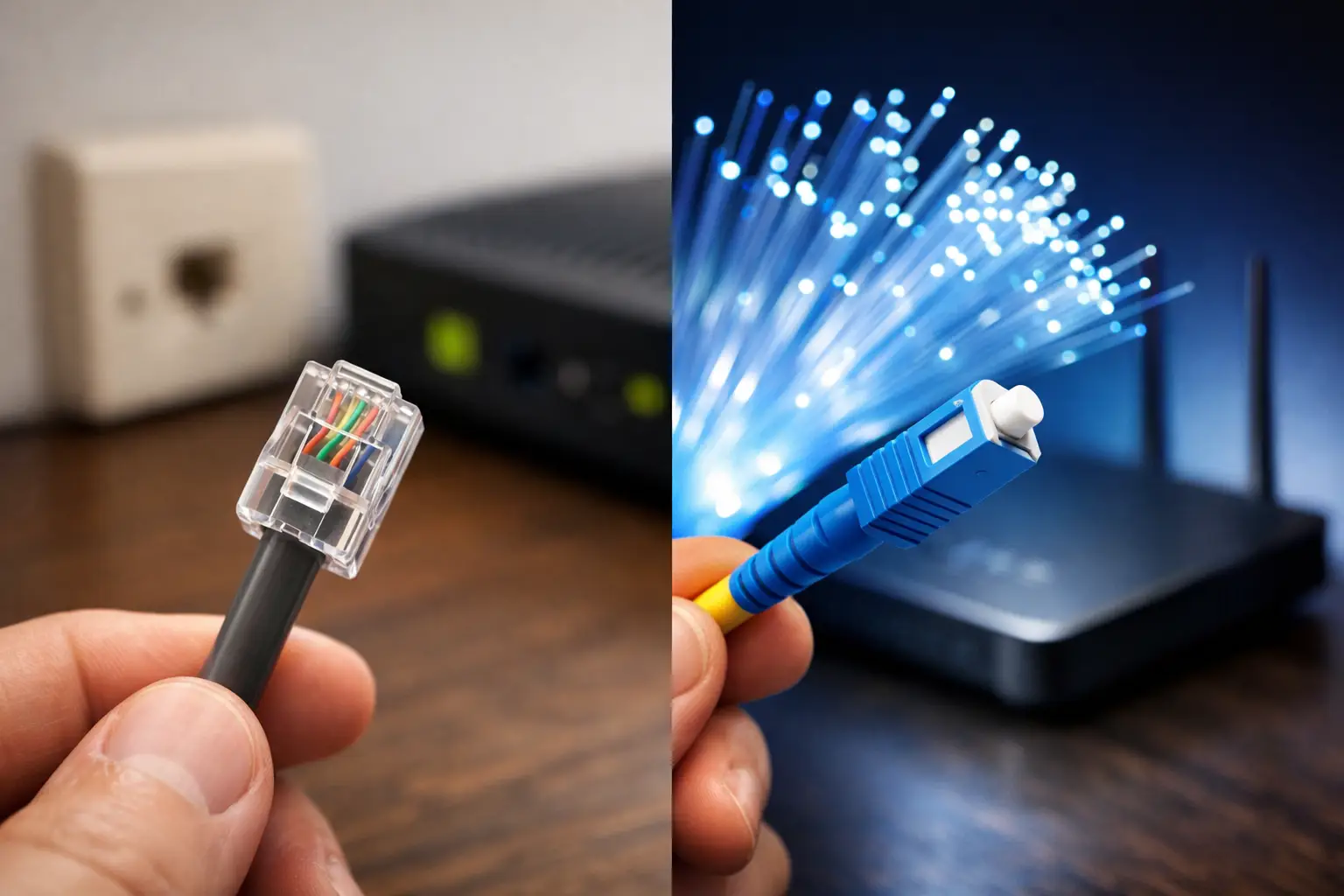
When evaluating package speed, also consider the infrastructure type. Fiber, VDSL and wireless internet solutions have different performance characteristics. With VDSL connections, in-building wiring, line length and physical conditions can have a greater impact on results. With fiber, in-home network equipment and wireless usage habits come to the fore. In other words, the ideal solution isn't simply choosing the highest Mbps figure; the infrastructure at your address and the way you use the internet should be considered together.
How do you determine the speed you need for home or business?
One person checking email and using social media doesn't have the same needs as a household of four streaming, gaming and joining video meetings at the same time. Likewise, in a small office, using web-based accounting software creates different connection expectations than holding regular video meetings or sharing large design files.
When deciding, consider the number of active users in your home or workplace, the applications used simultaneously and your upload needs. For remote workers in particular, stability can be more valuable than high download speed alone. For businesses that sell online, uninterrupted access has a direct operational impact on payment systems and customer communication.
Tepenet helps you evaluate package options based on different infrastructure and usage needs. Considering the infrastructure at your address, your usage intensity and what you expect from your connection together is a practical way to find the right option without paying more than necessary.
When should you contact technical support?
If you consistently see low speeds over a wired connection, across multiple tests and at different times, submit a support request. Frequent disconnections, warning lights on the modem, noticeably high ping or connection problems that persist throughout the day should also be investigated. When submitting a request, briefly share when you ran the test, whether you used a wired or Wi-Fi connection, how many devices are affected and the problem you're experiencing.
Your internet experience doesn't depend on a single number on a test screen. With regular measurements, proper test conditions and a connection that suits your usage, you can enjoy a more controlled experience both at home and at work. If your connection isn't meeting your expectations, have your test results ready, clarify your needs and get support for the solution that's right for you.