
If files open slowly at the office, cloud applications keep you waiting or audio drops out during video meetings, you need to measure the source of the problem rather than guess at it. A business speed test shows you how your connection is performing at that moment, but it is more than a single number. When download speed, upload speed, latency and connection stability are evaluated together, the factors affecting your workflow become much clearer.
Whether a speed test gives an accurate result depends on where, with which device and under what conditions it is run. That is why checking your test environment before comparing the results with your package speed helps avoid unnecessary support tickets and misdirected troubleshooting.
What does a business speed test show?
A speed test measures data transfer between your device and a test server. The values on the screen do not mean your internet connection will stay the same all day. Still, a few measurements taken under the right conditions give you a solid picture of the overall state of your office network.
Download speed refers to the amount of data coming from the internet to your computer. Loading web pages, downloading files from cloud storage, receiving updates and watching videos all depend on this value. In workplaces where several employees are online at the same time, download speed becomes more critical as the number of users grows.
Upload speed shows the data sent from your computer to the internet. Sending email attachments, backing up to the cloud, uploading e-invoices or design files, accessing security camera footage remotely and joining video meetings all rely on upload speed. This value should not be overlooked, especially by businesses that work with large files, such as architecture firms, accounting offices, agencies and e-commerce companies.
Latency, also known as ping, is the time it takes for data to travel to the server and back, measured in milliseconds. The lower the value, the faster the connection responds to commands. Online meetings, remote desktop applications, IP phone systems and software requiring real-time operations benefit directly from low latency.
Jitter, shown in some tests, describes how much latency varies. Even if average ping is low, high jitter can cause robotic-sounding audio in voice calls, brief freezes in video meetings or choppy performance over remote connections.
Prepare your office network before testing
A test run while an employee is using the connection heavily can show how it performs under real-world load. However, to understand your package performance and possible infrastructure issues, it is better to start with a controlled measurement. Before testing, make sure of the following:
- If possible, connect the computer to the modem or router with an Ethernet cable.
- Temporarily pause cloud backups, large file downloads and software updates.
- Check for heavy traffic on phones, tablets, cameras and other computers connected to the same network.
- Keep in mind that an active VPN, security software scan or remote connection application may affect the result.
- Don't leave lots of browser tabs open or data-consuming applications running in the background.
A measurement over a wireless connection is also useful, but it reflects Wi-Fi performance as well as the internet line itself. Distance from the modem, walls, congestion from neighbouring networks and the device's wireless standard can all lower the result. So when you see a low Wi-Fi result, repeating the same test over a wired connection is important for an accurate diagnosis.
How to run a business speed test
All you need is an up-to-date browser and, ideally, a computer with a wired connection. First reduce heavy usage in the office, then start the test from a single device. When the test is complete, note the download, upload, ping and, if shown, jitter values.
The first measurement may not be enough to draw a firm conclusion. Run at least three tests at different times: at the start of the workday, during peak hours and at the end of the day. This helps you understand whether the problem is constant or occurs only at certain times. For example, performance that is high in the morning but drops noticeably in the afternoon may stem not only from the internet line but also from simultaneous usage within the office.
Also record which device was used, whether the connection was wired or wireless, and the approximate number of users at the time. If technical support is needed, this information helps speed up the process.
Be careful when comparing results with your package speed
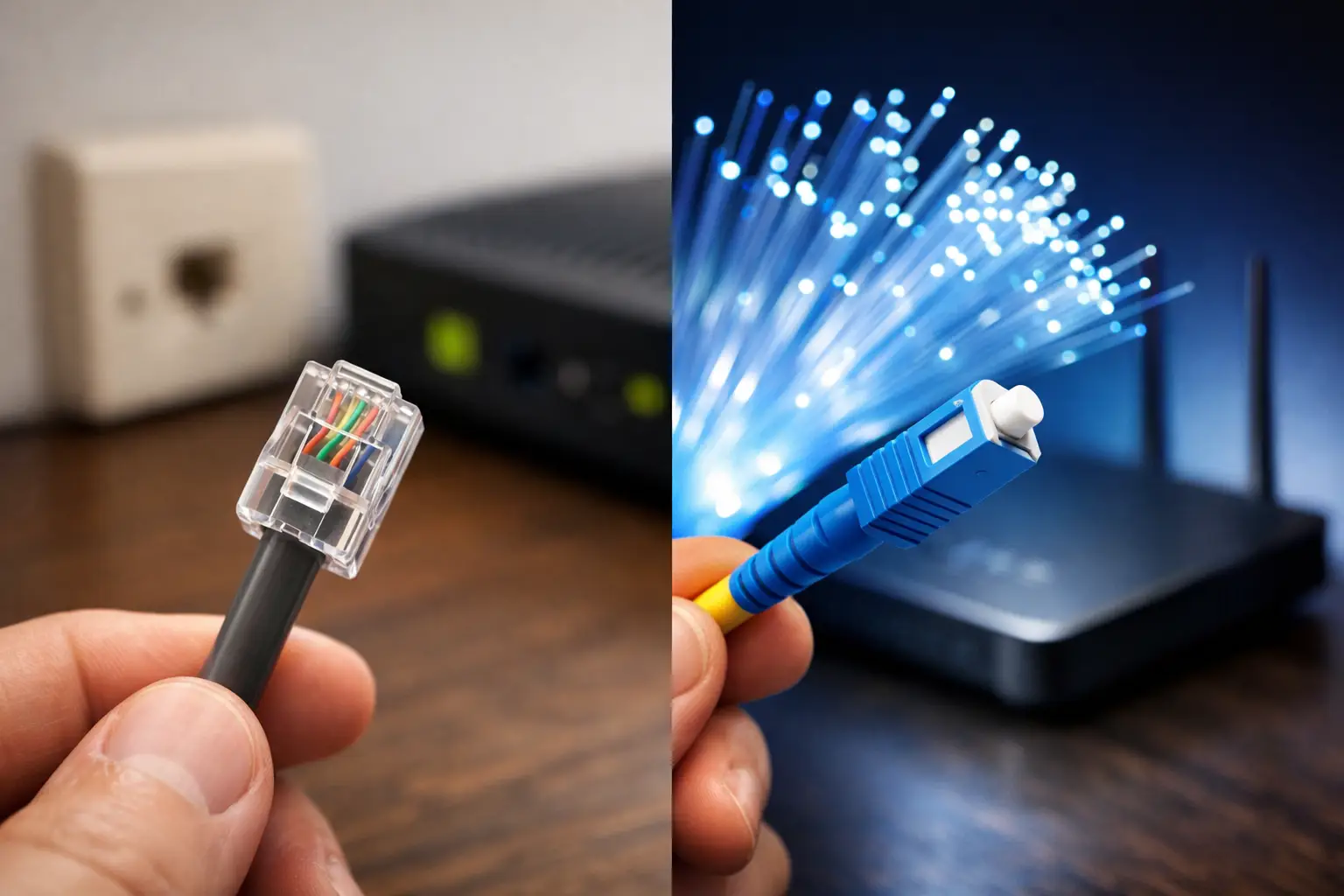
You shouldn't always expect your speed test result to match the value listed in your package exactly. The type of infrastructure, in-building wiring, device capacity, wireless network conditions and simultaneous usage all affect the measurement. Fiber connections can deliver higher and more stable speeds, while with VDSL connections line distance and internal wiring can play a bigger role. With wireless internet solutions, signal conditions are also taken into account.
The real question shouldn't just be “How many Mbps am I getting?” A more useful question is “Is this performance enough for everything my business does at the same time?” A ten-person office where everyone uses a browser and email has different needs from the same office constantly uploading files to the cloud, running POS systems, monitoring camera feeds and holding meetings all day.
Download speed may be high while upload speed is low. In that case, web pages load smoothly, but the video you send in a meeting may become blurry or file transfers may take longer. When ping rises, IP phone and remote desktop use can become frustrating even if the speed values look good. So don't decide whether a connection is good or bad by looking at a single metric.
The cause of low speed may not be the internet line
A significant share of slowness complaints in workplaces stem from a bottleneck inside the network. An old modem, an underpowered router, a damaged Ethernet cable or a poorly placed access point can degrade the connection experience. Especially in offices with many wireless devices, expecting a single modem to cover the entire space is not always a sound plan.
The device itself also limits the test result. Network cards in older computers, outdated drivers or limited wireless capacity may not be able to measure the full speed of a high-speed package. Likewise, you won't see speeds higher than 100 Mbps through an Ethernet port that only supports 100 Mbps.
If the problem only occurs in a particular room, check your Wi-Fi coverage before the infrastructure. If the problem appears on all devices and on wired connections too, it's best to contact technical support with your modem light status, physical connection details and test records.
Choose the right speed for your business
Choosing an internet package based only on your current headcount can quickly leave you short. New staff, new cloud applications, online sales channels or security systems all increase connection needs. So consider your usage habits and growth plans together.
In a small office, a balanced connection may be enough for basic web use. On the other hand, for businesses with frequent video meetings, remote work, cloud backups and file transfers, high upload speed and low latency add more value. For businesses that need uninterrupted internet throughout the day, accessible technical support and easy service management matter as much as speed.
When reviewing Tepenet's options for different infrastructure and usage needs, considering the infrastructure available at your address together with your office's real usage scenario makes it easier to find the right package. Keeping regular test records before considering a package change helps you explain your needs more clearly.
Your business internet should speed up your employees' work, not become a problem they struggle with every day. Run your measurements under the right conditions, read the results in light of how you use the connection, and if a problem keeps recurring, get support with your records in hand. The right connection decision makes even the smallest digital task in the office run more smoothly.